
No need to update settings one-by-one. Use Batch update to edit the settings for days on hand, lead time, lookback period, scheduled days, email notifications, and case sizes for many groups at once.
Be cautious as updating these settings will override any current settings your team may have previously set and cannot be undone without applying new settings.
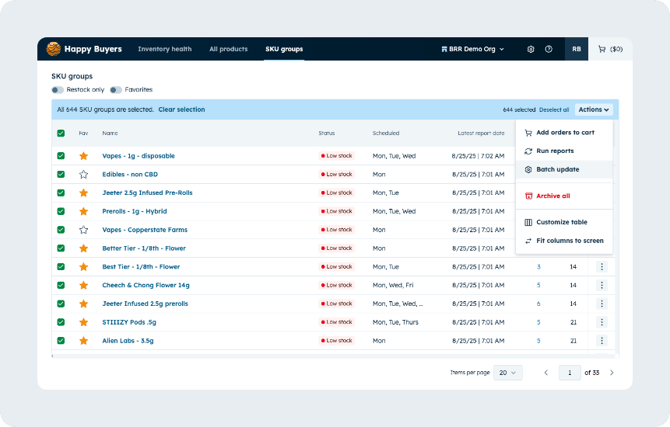
How to batch update (overview)
- Navigate to Org settings > Product lines, or click Edit products lines on the top right of the product lines page.
- Select the product lines you would like to edit using the checkboxes on the left side of the table
- Next to the Actions panel, you will see the number of groups you have selected
- Click the Actions button and select Batch update
- Select the properties you would like to edit on the left panel
- Review your updates
- Confirm your changes to apply the batch update
Run reports to refresh product line data
If you need your product line data to be updated after adjusting settings, select all product lines again after making updates, and click Run reports to refresh your data
Check the latest report date to verify they have been updated. It may take up to 30 minutes if you are updating all of your product lines.
How to select which product lines you would like to update
Select ALL Product lines
-
Select the checkbox on the table header. This will ONLY select your first page of results.
-
Click the blue link on the header to Select all product lines. Now ALL of your product lines on all pages are selected.
-
Click Actions > batch update, the apply your settings.
Updating product lines for a specific brand or vendor
-
Filter down to a specific brand using the left side filters.
- Follow the above steps. You will only be batch updating the product lines you see visible in the table.
Available properties to batch update
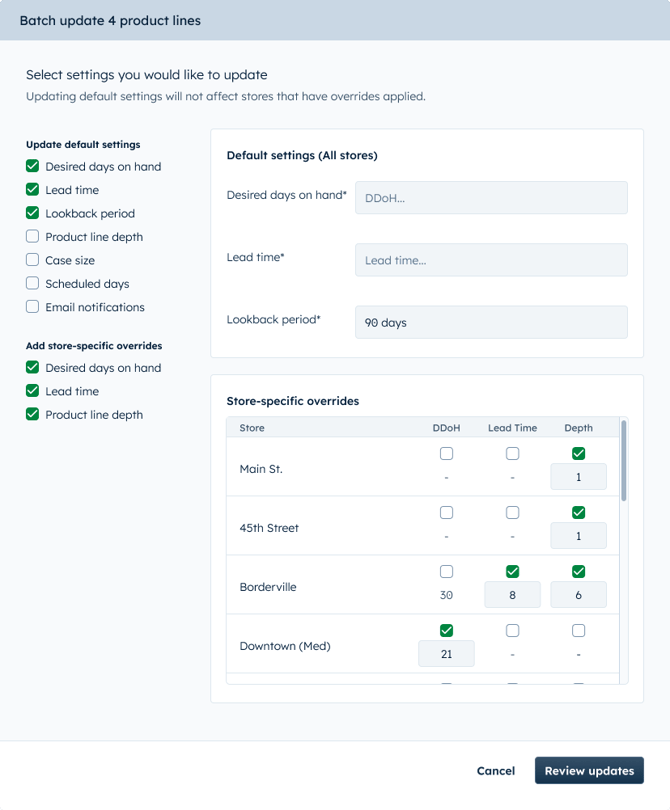
Default settings
These are settings the will apply for all of your stores, UNLESS a store-specific override has been added.
Select which settings you would like to change on the left side and edit the fields on the right side of the pop up.
Store specific overrides
Store specific overrides will be set for each individual store on all of your product lines. Check the store and column to apply an override. This can be especially useful when:
-
You have a smaller store with less shelf space and need to order fewer days on hand
-
A store is farther away and needs longer leads times.
-
A store is more popular and you want to keep a larger variety or product line depth than your other stores.
If you have an override set for your stores, you will no longer be able to batch update these using the default settings. I
If you would like to batch update one of these stores in the future, use the store override again.
If you would like to remove store overrides, reach out to the customer success team.
Days on hand, Lead time, and Lookback period
Enter or select the amount of days you'd like to use for each property.
Scheduled days
This property defaults to run reports all weekdays. Select which days you would like the selected product line reports to run.
Uncheck "Weekly" to unschedule all reports. If unscheduled, you will need to manual run each report or reschedule them to run future report data.
‼️ If email notifications are set on product lines you are updating, a report will be sent to those contacts on all days you have applied. Check that you are not spamming too many emails before batch updating this setting.
Email notifications
Select "Update emails" and check your email or add any other emails to have notifications sent each time a report is run.
Select "Clear all emails" to remove all email notifications on all selected product lines.
‼️ Batch updating multiple emails may result in many email notifications for each day your reports are scheduled to run.
Case sizes
Check case size and enter a quantity to update all product line case size automations. This will update all product case sizes in the product line the next time a report is run.