
Overview
Happy Buyers syncs each inventory room from your POS. Those inventory rooms then need to be mapped in Happy Buyers based on how they are used at the store for accurate run rate calculations and sales floor replenishment alerts.
Inventory room types

Sellable - counted in your run rate and inventory
All products and sales in sellable rooms are included in your run rate calculations and inventory counts.
Examples of sellable inventory rooms are Sales Floor, Accessories, Med, Bud Bar, or End of Batch – any room with products that are in stock and ready to sell.

Backstock - excluded from run rate but counted as inventory
Products in backstock rooms are included in your total inventory counts, but are not considered in run rate calculations.
With rooms defined as backstock, you can spot products that are out-of-stock in sellable locations that need to be replenished ASAP from a backstock room to avoid missed sales. Additionally, products and packages waiting in the vault do not skew and slow down the run rate of units available in sellable locations, which can lead to under-ordering and recurring stockouts.
Examples of backstock rooms are Backstock, Surplus, Inbound, or Receiving.

Excluded - excluded from your run rate and inventory
Any rooms with products that are not sellable or should not be counted as inventory should be marked as Excluded. Inventory in these rooms are not included in any Happy Buyers data.
Examples of excluded rooms are Quarantine, Employee samples, Returns, Raw materials, or Promos.
How to map your inventory rooms
- Make sure you are an Org admin (reach out to our customer success team if you need admin access or want to learn more)
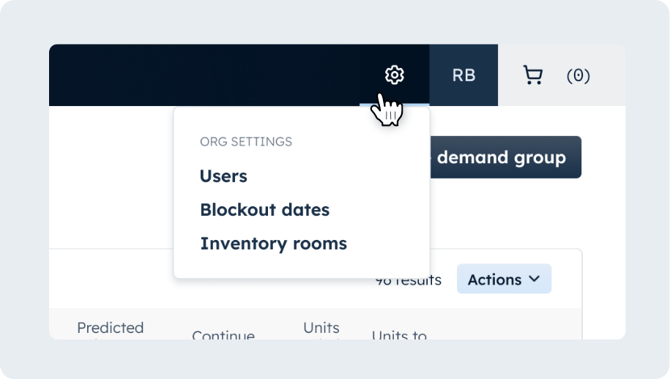
- Click the settings icon at the top right of your navigation menu and select Inventory rooms
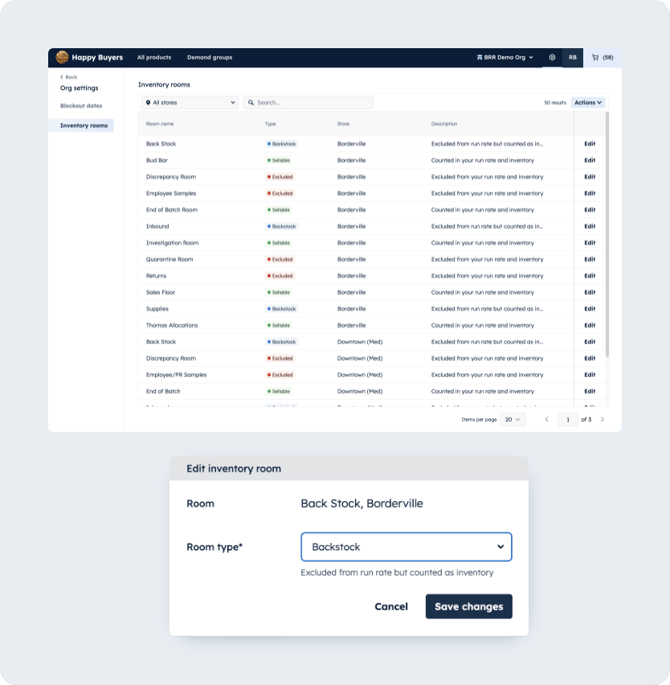
- To update an individual room –
- Click Edit
- Select the room type from the dropdown menu
- Click Save changes
- To update multiple rooms in bulk –
- Use the checkboxes to select one or more inventory rooms
- Open the Actions dropdown menu and select Batch update
- Select the room type from the dropdown menu
- Click Update
💡 Create an SOP for updating inventory room mapping settings in Happy Buyers if and when new inventory rooms are created in your POS system! Happy Buyers will default all new rooms as sellable.