
Products will always be added automatically to your current selected draft order.
You can change which draft is current at any time without losing work on the others.
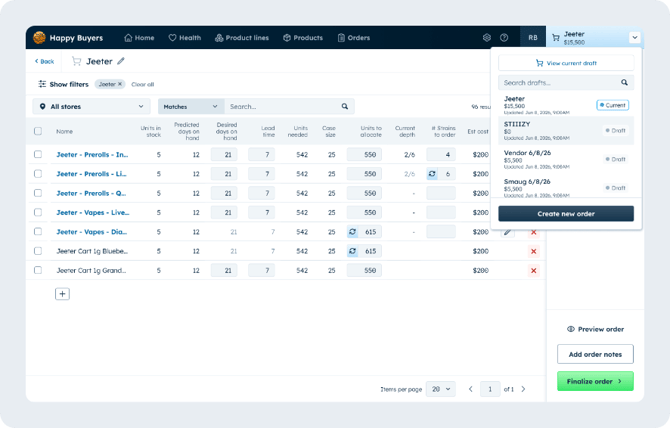
The cart widget in the top right nav bar is your home base:
- Click the dropdown arrow to start a new order or switch between drafts
- Click the cart icon and order name to open your current draft order and edit it,
or click the View current draft button from the dropdown
Creating a new draft order
Start a new draft from the "Create new order" button on the Orders page or in the cart dropdown located in the top right corner of Happy Buyers.
Name your new order and set it as your current draft.
Switching to a different draft
There are a few ways to switch what order your are working on –
-
From the cart dropdown:
Click the right dropdown and click any draft. It becomes current immediately and new products will be added to this draft. - From the orders page:
All drafts will appear alongside saved orders on your orders page. Click the three dot actions menu to the right of any draft and select Set as current draft to begin working on an unfinished order. - From the orders detail page:
From the orders page - Click View to preview a draft order, then click the actions dropdown button on the top right of the order and Set as current draft.
Adding products to your draft order
Add items from the Products and Product Lines pages. Every product goes into your current draft order that is visible in the top right corner of Happy Buyers.
If a current draft order is not selected, products will go into a new, unnamed draft order that you can name later from the cart.
Naming and renaming your orders
Use the Order name field to name your order. We recommend naming your order by the vendor or brand name that will be receiving the order as it will be visible on the order and makes it easy to reference. Use the description field for internal order notes, like 'weekly restock' or to note which store(s) the order is for.
Be sure to name your order appropriately as the order name will be visible on orders shared with vendors.
To name your order after adding products to your cart, you can either:
-
Navigate to you your cart and click on the order name to rename it
-
From the order page, click the three dot actions menu on the same row as the unnamed order and click Edit details
- When saving your order, a pop up will prompt you to name your order before confirming
Saving and sending your draft
When an order is complete, click Save order and review the name and description.
Saved orders cannot be edited. Click Preview order before saving to review what the final order will look like.
After an order is saved, you have the option to either export it or send the order directly to your vendor.
Viewing your orders
All orders — draft, finalized, and sent — appear together on the Orders page. Filter by status, and look for the "Current draft" badge to spot your active draft.
Admin users
Admins can see all users' orders but can only set their own drafts as current.