
Filters available on Happy Buyers:
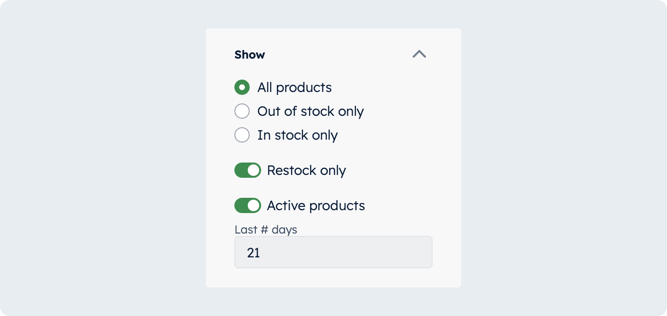
Show: All products, out of stock only, or in stock only
-
- All products - view all products that have been in your inventory over the past 90 days (the default selection on Happy Buyers)
- Out of stock only - view all products that have an inventory count of 0
- In stock only - view only products you have in stock
Show: Restock only
-
- Toggle on Restock only to view all products that have a recommended units to order greater than 1
Show: Active products, Last # of days
-
- Toggle on Active products to view products that have had made any activity – movement between inventory rooms or product sales – within the last X number of days
- This can be used to filter out older inventory from your results or identify stagnant SKUs!
- This can be used to filter out older inventory from your results or identify stagnant SKUs!
- Toggle on Active products to view products that have had made any activity – movement between inventory rooms or product sales – within the last X number of days
💡 Tip to try
1. Select Out of stock only
2. Toggle Restock only
3. Toggle Active products and filter to the last 7 days
4. Sort your Units per day column descending
This will show you your fastest selling products that went out of stock last week!
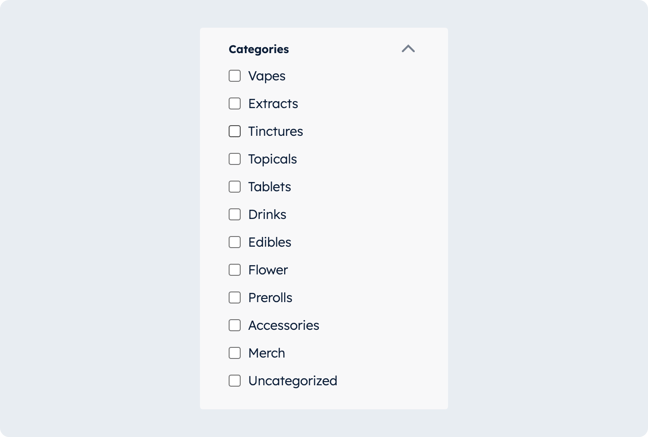
Categories
The default categories, unique to Happy Buyers for platform consistency, are mapped from your POS Categories.
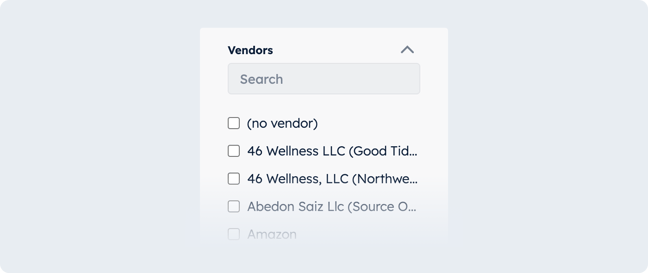
Vendors
Vendors are pulled from your POS.
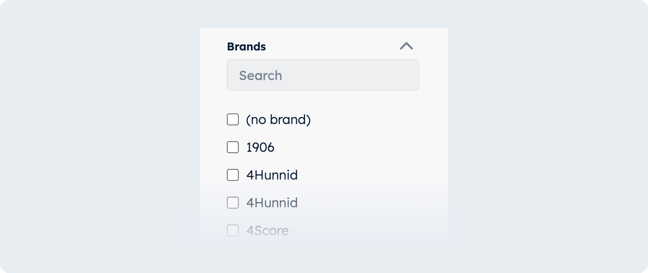
Brands
Brands are pulled from your POS. If you see duplicates or misspellings, correct them in the POS and set up proper SOPs to make sure you have clean data hygiene.

Weight (grams)
Weight is pulled from your POS and shown as grams in Happy Buyers.

Strain classification
-
- CBD
- Hybrid
- Indica
- Indica hybrid
- Sativa
- Sativa hybrid
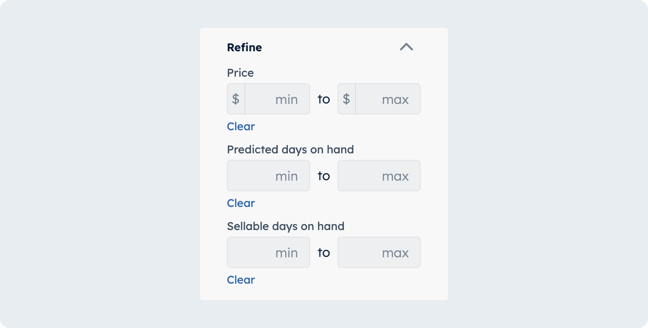
Refine by
-
- Price
- Cost
- Predicted days on hand
- Sellable days on hand
- Current inventory
- Sellable inventory
- Aged inventory cost
- Units sold
💡 Tip to try
- Set Sellable days on hand to a maximum of 1
- Set Predicted days on hand to a minimum of 2
This will show you all products that have less than 1 days of inventory on the Sales Floor that have available Backstock inventory that you can replenish from!
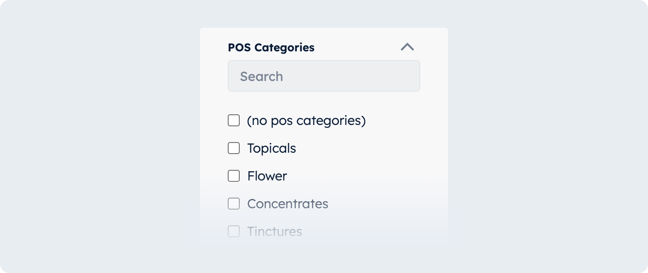
POS Categories
Categories as pulled from your POS.
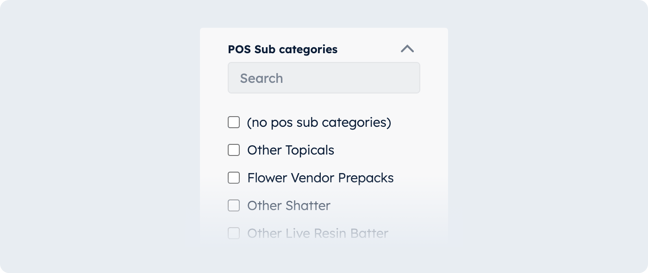
POS Subcategories
Subcategories as pulled from your POS.
Advanced searching
Type your keyword(s) and hit enter – or click the magnifying glass icon – to add your search terms! Advanced searching references the product name only. To search by brand, vendor, weight, or category (if not in the product name) use the filters available in the left-side filter panel.

Matches "search term"
Applying this search will show all results that have an exact match of the entered term somewhere in the product name.

Does not match "search term"
Applying this search will filter out all results that have an do not have an exact match of the entered term somewhere in the product name.
💡 Tips
- Combine product filters, search terms and column sorting for maximum control of parsing your inventory
- It's best practice to use the brand or category filters when possible, then use the search bar to further refine your results
- To filter out samples from your results -
- Add the search: Does not match "sample" or "promo" if tagged in the product name
- Or, apply a minimum price filter of $0.02 to get products that cost more than a penny