
Learn how we recommend ordering on Happy Buyers
For the most accurate demand forecasting and ordering, we recommend using the Product lines page for your rotational, strain-based SKUs, and the All products page for individual, traditional SKUs that are always available for ordering.
Overview
Adding a product line to your cart will add the total units needed for that product line based on your desired days on hand, lead time, and lookback period settings. Adding a product line to your cart will not include any individual SKUs or strains, but they can be added if desired.
You can send the order to the vendor and give them guidelines such as:
- "I need your highest THC% Sativa, Hybrid and Indica strains allocated evenly across 120 units for this product line"
- "I'd like 2 Indicas, 2 Sativas, and 4 Hybrids - totaling 160 units"
- "Blueberry Cookies and Lemon Cherry Gelato are preferred if available, or sub these for the closest available option...but don't give us White Widow"
Adding product lines to your cart
- Navigate to the Product Lines page
- Toggle on Restock Only
- Click the cart icon in right column
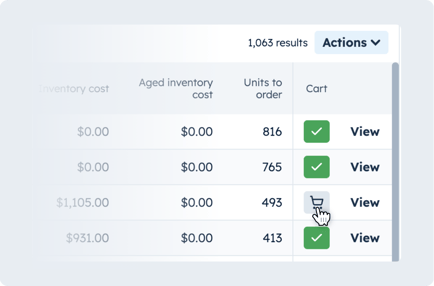
Batch adding product lines to your cart
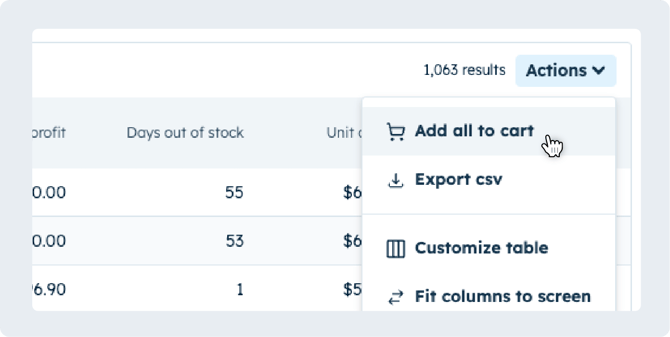
- Navigate to the Product lines tab
- Toggle on Restock Only
- Filter down to the store, vendor, brand, or category you need to reorder for
- Use the checkboxes on the left side of your table to select specific product lines to reorder
- Or, leave the checkboxes unchecked to add all of the product lines you have filtered down to your cart
- Click the Actions button on the top right of the products table
- Select Add all to cart
Viewing Product lines in your cart
Product lines in your cart are linked to a product line order guide that can be shared with your vendor.
Add notes, number of products needed, as well as lists of your best-selling products, discontinued products and past inventory.